
Employees and organization chart
Purpose
Review active people and the department hierarchy without confusing a user account with the Onboarding process.
Before you start
Step by step
- 1
Open Employees and review the List view. Accounts come from user creation and membership in the organization.
- 2
To add someone, use Create User or Settings → Create User; for the document process, use Onboarding.
- 3
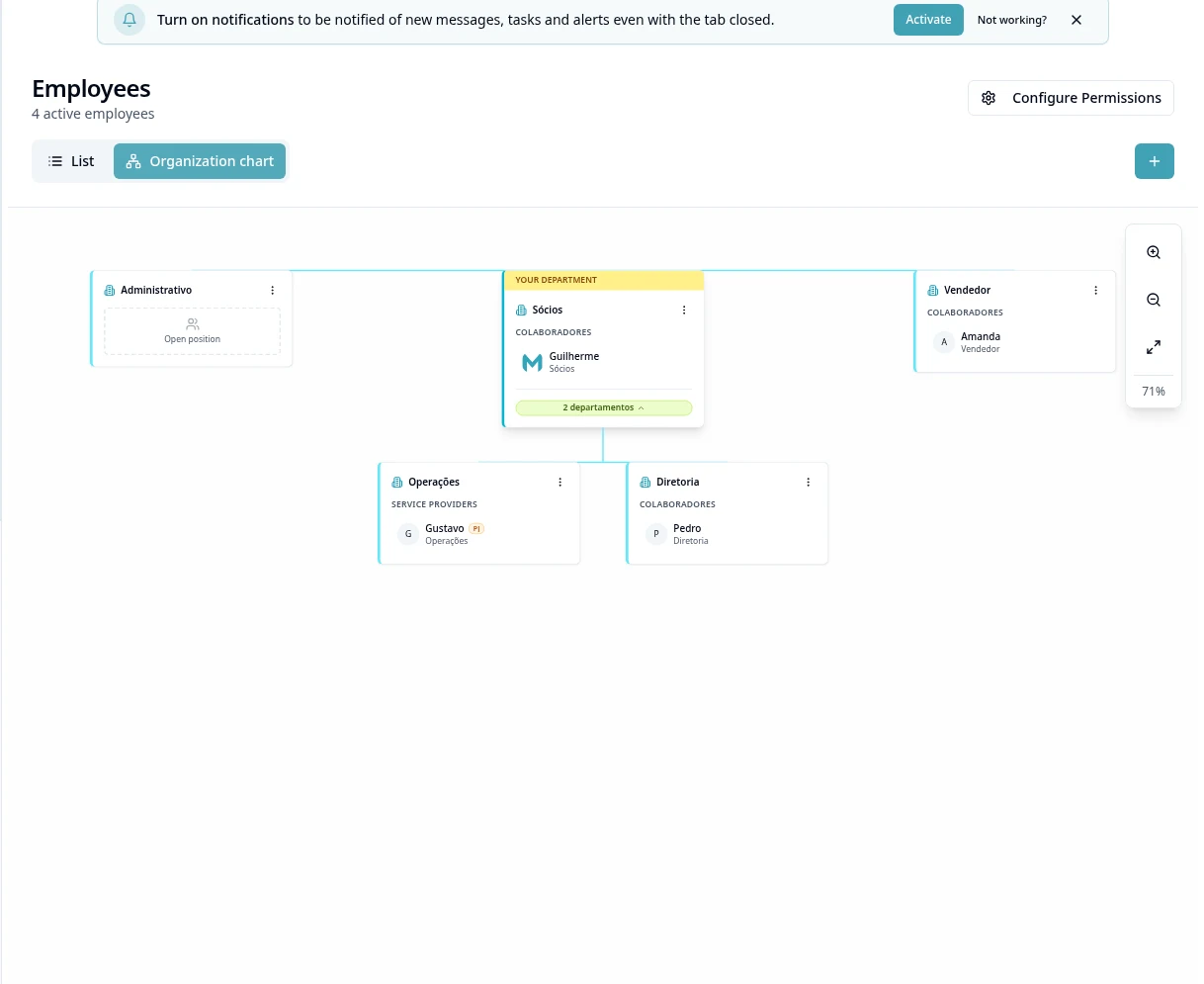
On desktop/tablet, select Organization Chart; on mobile, the page prioritizes List.
- 4
Add existing departments to the structure and arrange their positions using the organization chart menu.
- 5
In the person's menu, use Mark as Leader or Unmark as Leader when authorized.
- 6
To transfer, use Move to another department; check the assignment after saving.
- 7
Open View Profile to review details. Send Message opens the internal conversation.
- 8
Review the final organization chart and adjust managers directly in it if needed.
Available controls depend on your user permissions and organization settings. If an option is missing, ask the administrator to check your module access.